> For the complete documentation index, see [llms.txt](https://support.trybit.com/llms.txt). Markdown versions of documentation pages are available by appending `.md` to page URLs; this page is available as [Markdown](https://support.trybit.com/getting-started/project-settings.md).
# Project Settings
All Trybit project settings: 9 sections from basic information to the payment widget.
After a project is created, its settings are gathered in a single "Project Settings" section made up of 9 tabs. Editability depends on the test mode status.
### 1. General
Project name, line of business, project description, expected turnover, and the domain of the website where payments are accepted. While the project is live (test mode is off), all fields are closed for editing. The name, line of business, and project description can only be changed while test mode is on. The website domain or Telegram bot cannot be changed in either test or live mode — to change the website, you'll need to create a new project. This is also where the irreversible project-deletion button is located (invoices and payment history are preserved in the "Payments" section).
### 2. Integration and API
Integration method (API, ready-made CMS plugins, HTML widget with or without postback), success payment URL, failure payment URL, notification URL, and POSTBACK format (form-data or json). This is the only section that remains closed for editing even after exiting test mode — it can only be changed by re-enabling test mode.
### 3. Project currencies
Choice of available currencies for accepting payments: the most popular stablecoins, major blockchain currencies, low-fee networks, and new additions. Currencies can be disabled and re-enabled as needed. 4 currencies are protected from being disabled (marked with a lock icon): USDT TRC20, USDT ERC20, USDT BSC (BEP20), USDC ERC20. This section is open for editing regardless of test mode.
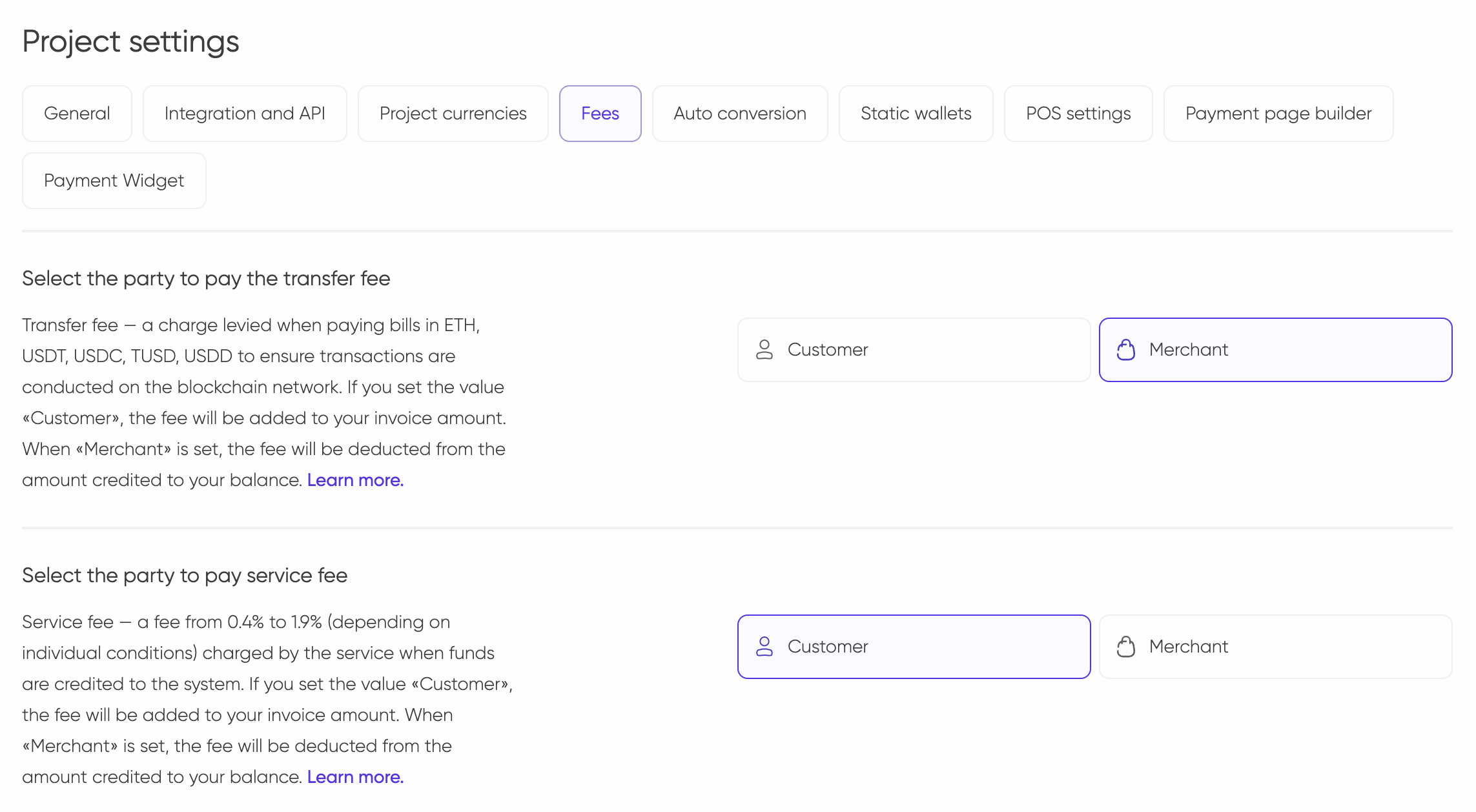
### 4. Fees
Choice of who pays the transfer fee (client or merchant) — a charge levied when paying invoices on the Tron and Ethereum networks to cover blockchain transaction processing. And separately — choice of who pays the service fee, charged when funds are received into the system. This section is open for editing regardless of test mode.
#### Auto-confirmation of partially paid invoices
Auto-confirmation of partially paid invoices sets the allowed deviation of the payment amount from the invoice amount (in % or in currency) at which the invoice is still marked as paid.
{% hint style="info" %}
**Example:** for an invoice of 10 USD with an auto-confirmation threshold of 1 USD, the invoice will be confirmed once 9.5 USD is received.
{% endhint %}
### 5. Autoconversion
Configure automatic conversion of received payments at the current exchange rate at the time of conversion (minimum exchange amount $10, network fee charged separately). Currency pairs can be created individually for the project. Opens for editing only after exiting test mode.
### 6. Static wallets
Lets you issue the same address to a customer for payments without creating a new invoice or going to the payment page each time; this is also where you search and filter already-created wallets by currency and status. Opens for editing only after exiting test mode.
### 7. POS settings
Logo for the POS terminal (uploaded separately from the payment page logo; PNG, up to 2 MB) and other terminal parameters. Opens for editing only after exiting test mode.
### 8. Payment page builder
Configure the appearance of the payment page — logo, color theme, currency order, page language (more than 20 languages available). Opens for editing only after exiting test mode.
### 9. Payment widget
Configure the embeddable payment widget for your website. Opens for editing only after exiting test mode.
{% hint style="success" icon="lightbulb" %}
Not sure where to start? Use the knowledge base search (🔍the search icon in the page header) — it's often faster than browsing manually, especially given the volume of material.
{% endhint %}
---
# Agent Instructions
This documentation is published with GitBook. GitBook is the documentation platform designed so that both humans and AI agents can read, navigate, and reason over technical content effectively. Learn more at gitbook.com.
## Querying This Documentation
If you need additional information that is not directly available in this page, you can query the documentation by asking a question.
Perform an HTTP GET request on the following URL with the `ask` and `goal` query parameters:
```
GET https://support.trybit.com/getting-started/project-settings.md?ask=&goal=
```
`ask` is the immediate question: it should be specific, self-contained, and written in natural language.
`goal` is what the user is ultimately trying to achieve, the reason they need the answer. Sharing it helps GitBook give you a better, more relevant answer. A goal is most helpful when it describes the outcome the user wants rather than restating the question. For example, with `ask=how do I create an API token`, a goal like `automate deployments from our CI pipeline` lets GitBook tailor the answer to that use case.
The response will contain a direct answer to the question and relevant excerpts and sources from the documentation.
Use this mechanism when the answer is not explicitly present in the current page, you need clarification or additional context, or you want to retrieve related documentation sections.